APP STORE · AVAILABILITY & VERIFICATION
Shadowrocket Download & App Store Verification
Shadowrocket is a paid app with a one-time purchase, available through the App Store. Check the product page first, then follow the instructions for your device to complete the purchase and open the app for the first time.
- Developer: Shadow Launch Technology Limited
- App ID: 932747118
- US price: $2.99 · One-time purchase
- For iPhone and iPad
The developer, icon, and app ID should all match the same Shadowrocket product page. Check the current storefront for the price.
02 / 03 Then check your account regionThe country or region associated with your Apple Account determines which storefront listings you see.
STORE / REGION
Storefront and account region
If you can’t find the app, first check which country or region your current App Store account uses, then verify the product page itself.
Shadowrocket isn’t available in the mainland China storefront. Different Apple Accounts on the same device may show different storefronts based on their associated countries or regions. Changing your device language or location doesn’t change your account’s storefront. The button at the top of this guide links to Shadowrocket’s App Store product page. If it says the app isn’t available in your region, check the region associated with the Apple Account signed in to the store instead of relying on search results alone.
On iPhone or iPad, go to Settings → Apple Account → Media & Purchases → View Account → Country/Region to check your account details. The exact menu layout may vary by system version; follow what appears on your device. To change your account region, use the country or region settings provided by Apple and read the on-screen information about payment methods, account balance, and existing services. Whether you can change regions depends on your account status and the storefront’s requirements, so review the relevant guidance first.
Once you’ve confirmed the region, return to the product page and check the app name, developer, icon, and app ID. Prices appear in the storefront’s local currency; the current App Store page shows the amount you’ll be charged. If the page opens but the purchase button is unavailable, check your payment status, device compatibility, and the requirements listed on the page, then follow the App Store’s instructions. Being able to open the page doesn’t mean your account is eligible to buy the app.
VERIFY / APP PAGE
How to verify Shadowrocket
Before paying, check three things: the developer name, the official icon, and the app ID in the product page URL.
First, check the developer. The Shadowrocket product page lists Shadow Launch Technology Limited as the developer. Search results may show apps with similar names, so the name alone isn’t enough. Open the product page and check the developer before deciding. If the developer doesn’t match, don’t assume it’s the app covered by this guide until you’ve verified the details.
Second, check the icon. The official icon shown in this site’s header matches the App Store artwork: a rocket with a blue-purple outline on a white background. Use it as a secondary check, alongside the developer name and app ID, since small icons can be difficult to distinguish. Verify against the icon currently shown on the App Store product page, not an interface element in a screenshot.
Third, check the app ID: 932747118. On the product page, look for id932747118 at the end of the URL. It should point to the same page as the developer name and icon. Once all three match, check the price and compatibility details. The App Store button on this site links only to this product page; if you arrive through search, use these details to verify it again.
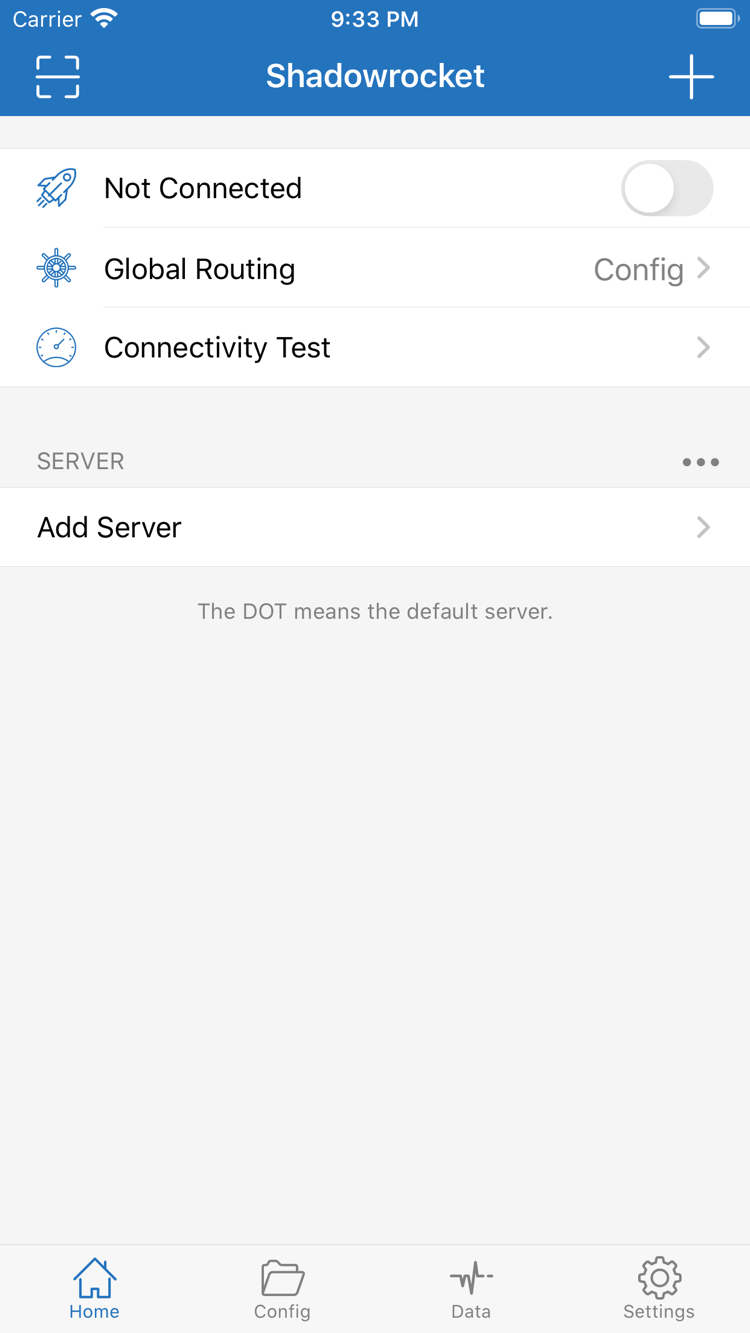
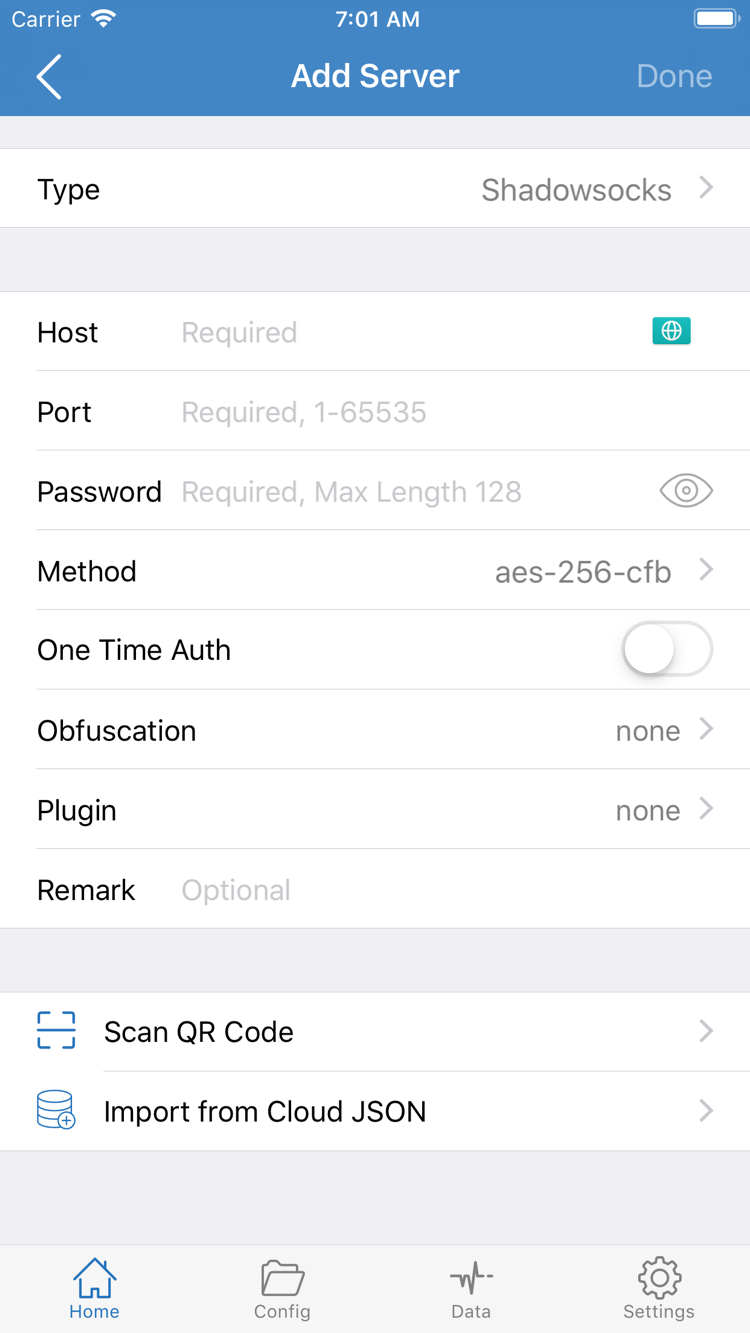
The two images below are official Shadowrocket screenshots provided by the App Store. They show pages you may encounter when you first open the app. The Home screenshot shows the connection switch, Global Routing, Connectivity Test, and the SERVER group. The Add Server screenshot shows fields such as Type, Host, Port, Password, and Method. Use the screenshots to locate interface sections; they don’t replace checking the developer and app ID before purchase. The app’s interface may vary with its current settings, so follow what appears on your device.
DEVICE / IPHONE
Get Shadowrocket on iPhone and open it for the first time
Verify the product page first, then buy and open the app on your device.
On your iPhone, open the App Store product page at the top of this guide. Check your current Apple Account, the developer name, icon, and app ID. Then review the price and compatibility section; check the App Store page for system requirements. Once verified, follow the purchase steps shown by the store. The App Store displays your payment and download status; this site can’t determine whether your account has already purchased the app.
When you first open Shadowrocket, take a moment to explore the connection switch, Global Routing, and server section on Home. Open Subscribe or Add Server only if you already have your own subscription or server details to import. After selecting a server and turning on the connection, your device may ask for permission to add a VPN configuration. This is a system authorization step for network settings; read the prompt and decide whether to continue. Opening the app for the first time doesn’t mean a connection has been configured.
If you’ve already bought the app but still see a price on its product page, first check whether the App Store is signed in with the Apple Account you used to buy it. Then look in your App Store account’s purchased items. Purchase history belongs to an account, so having the same device doesn’t confirm a purchase. Likewise, having downloaded the app before doesn’t mean the account currently signed in has that purchase record. Check the account, purchase history, and device compatibility separately to avoid repeating steps.
DEVICE / IPAD
Use the same purchase on iPad
Use the same Apple Account to find your Shadowrocket purchase on iPhone and iPad.
After buying Shadowrocket on iPhone, sign in to the same Apple Account on your iPad, open the App Store, and find Shadowrocket in your purchased items to download it again. If you haven’t bought it yet, you can also open the same product page on iPad and follow the store’s information. You don’t need separate product names or app IDs for the two devices; check that you’re using the same purchase record and product page.
An iPad’s screen layout differs from an iPhone’s, so page layouts, list widths, and some entry points may vary. Look for English interface labels such as Home, Global Routing, Add Server, and Subscribe rather than relying on exact screenshot positions. After importing your existing details, check the selected server, routing mode, and connection status on the iPad. A selection on another device doesn’t mean setup is complete on this one.
The compatibility section on the same App Store product page also lists Mac, Apple TV, and Apple Vision. If you plan to use Shadowrocket on one of these devices, read the details in that section first. Check the App Store page for system requirements and whether the same purchase applies. The iPhone and iPad instructions here don’t directly apply to other devices; use the product page to confirm compatibility.
PURCHASE / RESTORE
Move to a new device and download again
Find the purchase under your original Apple Account, then restore your own configuration details.
After replacing or resetting your iPhone or iPad, sign in to the App Store with the Apple Account you originally used to buy Shadowrocket. Go to App Store → Account → Purchased, find Shadowrocket, and download it again from your purchase history. You don’t have to pay again to redownload an app purchased with that account. If Shadowrocket isn’t listed, first confirm you’re using the same account, then check the storefront region and compatibility details on the product page.
Restoring a purchase and restoring configuration are two different things. Your purchased items help you find the app; they don’t restore server details, subscription URLs, notes, or rule settings you added yourself. After opening Shadowrocket on your new device, import your own subscription or server information from your saved details, then check Global Routing, the selected server, and the connection status. Before switching devices, organize the configuration details you’re authorized to use. That makes migration easier than searching for the app name after the fact.
If your old device still works, review the current configuration in the app and note what you need to keep. Manage account details, subscription URLs, and server passwords securely; don’t use example.com as a real server. After downloading the app again, check each step in order: the app opens → your saved details are imported → a server is selected → the connection status is verified. This helps avoid mistaking a working app launch for a complete restore of your previous setup.
PRICE / PURCHASE
Price and one-time purchase
One-time app purchase ≠ service plan
Shadowrocket is a one-time purchase; there’s no monthly app fee. The US storefront lists a reference price of $2.99. App Store prices vary by country or region and appear in the local currency; check the current product page at checkout for the amount charged. Before buying, confirm your Apple Account and storefront rather than estimating your total from a price listed for another region.
One-time app purchase ≠ service plan. Buying Shadowrocket gives you the app, not a server or subscription service. This is an official manual and does not provide or sell servers or subscriptions. Subscribe and Add Server are for importing details you already have. To learn how to add your own information, see the Server Management Guide.
App updates and purchase history are managed through the App Store. If the price, device compatibility, or system requirements change, follow the information on the current product page. Checking the purchase, account region, and personal configuration separately makes it clear where to find the information for each step.
QUICK ANSWERS
App Store and purchase FAQs
Troubleshoot based on where the issue occurs: search, purchase, device compatibility, or an existing purchase.
What should I do if Shadowrocket doesn’t appear in App Store search?
The product page opens, but you can’t download the app. What should you check?
Do I have to pay again to download Shadowrocket on a new device?
Can I use Shadowrocket on my iPad after buying it on iPhone?
Can I get Shadowrocket on Mac, Apple TV, or Apple Vision?
The app opens in English. How can I follow this guide?
Have you downloaded the app and have your own configuration details? Follow the Quick Start Guide to import them, choose Global Routing, and check the connection status.